Usage
Voice & video
Voice channels — joining, push-to-talk, devices, background blur, camera and screen sharing.
Click a voice channel to join it. The connection persists while you browse other channels — a dock shows the live call with mute/leave controls, and the channel’s member list shows who’s in, with speaking indicators. Others see you as Online while connected.
Joining, leaving and muting play short sounds, and so do other people entering or leaving your call. Turn them off or adjust them under Sounds.
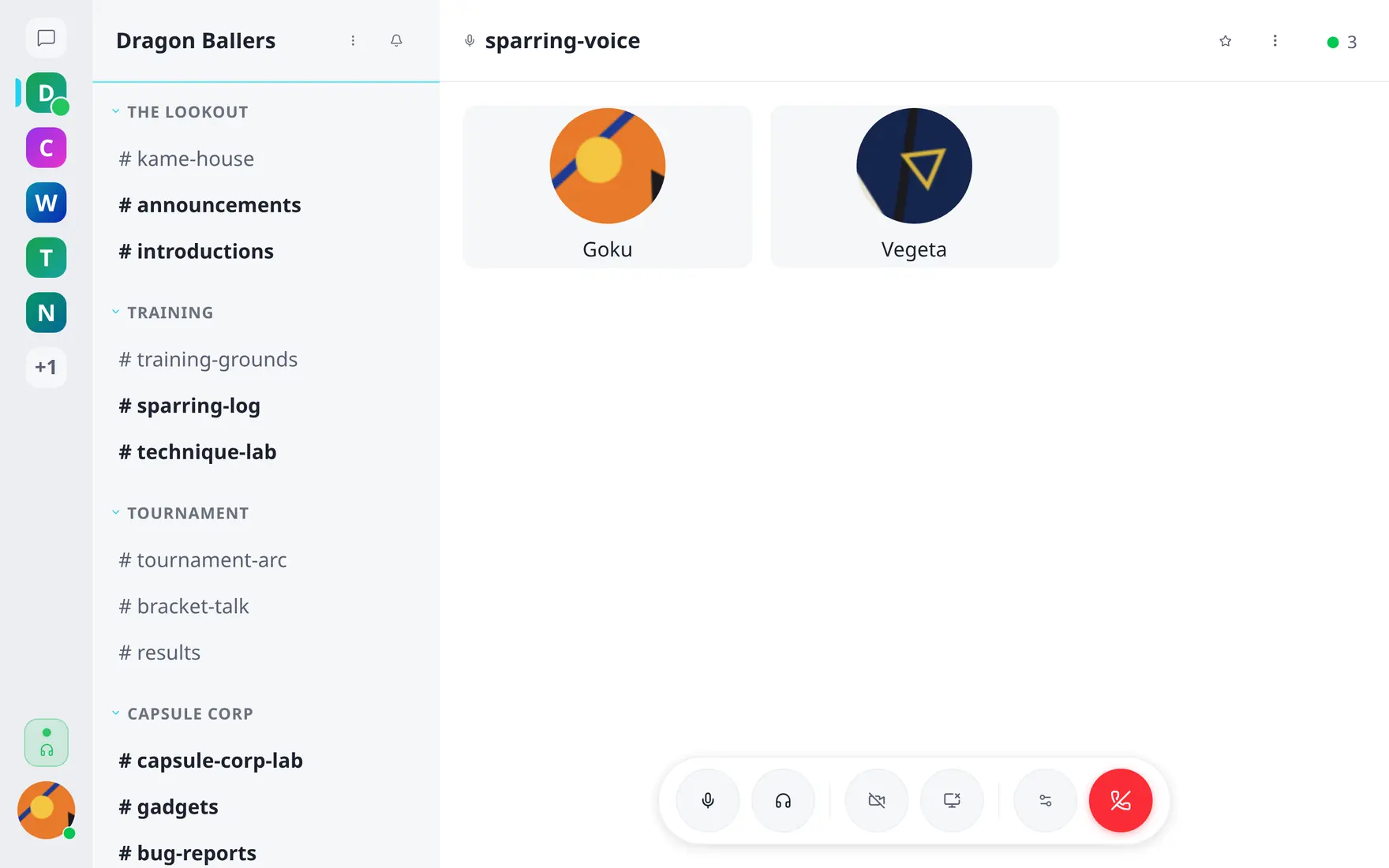
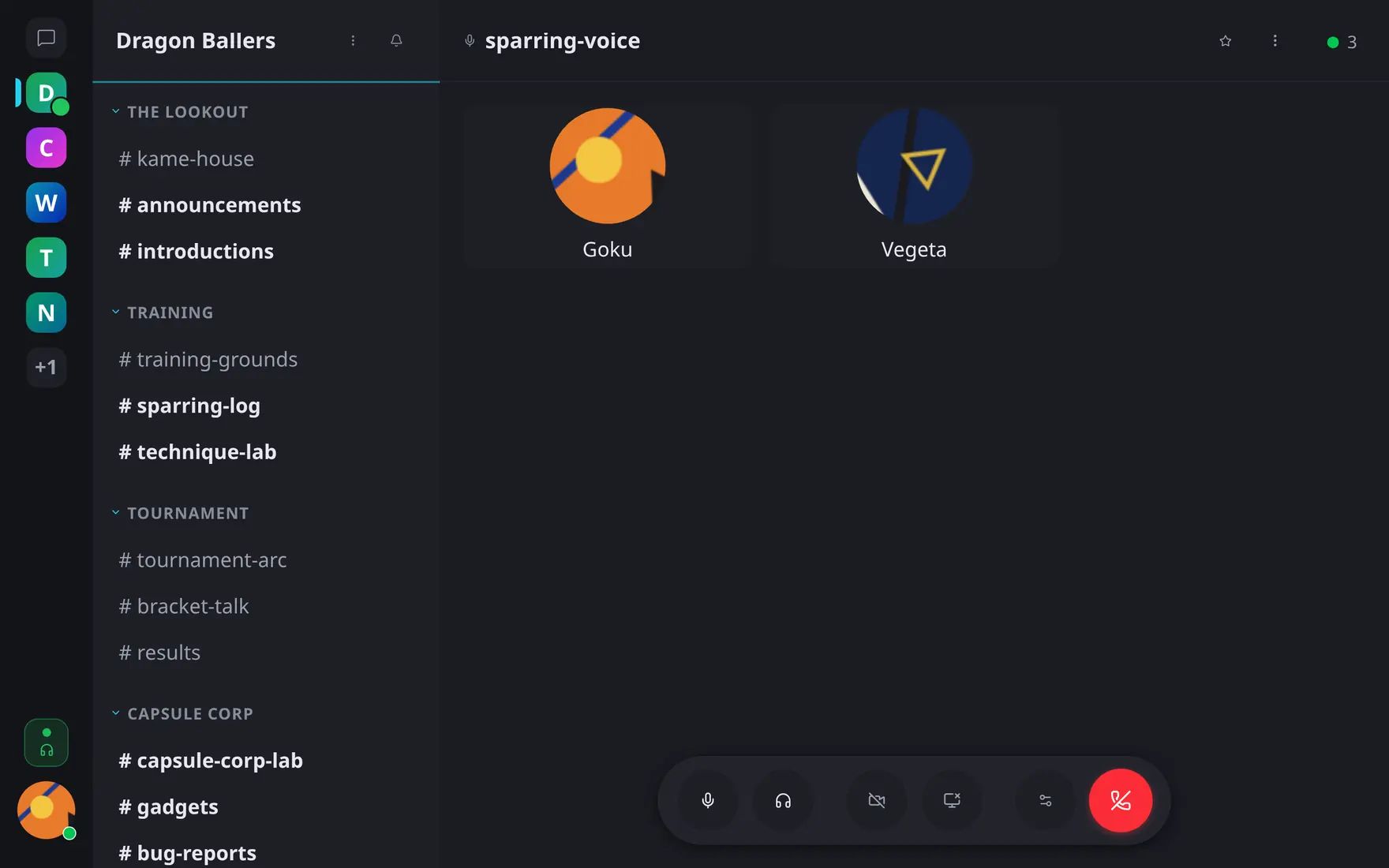
A live call: participant tiles plus the dock with mute, deafen, camera, screen share and leave.
Microphone
Two modes, set in Preferences → Voice & Video → Voice mode:
- Open mic — always transmitting (with noise suppression, toggleable).
- Push-to-talk — transmit only while holding the configured key.
Input gain and output volume have their own sliders; input/output devices are selectable with a pre-join preview screen, so you can check levels before entering a room.
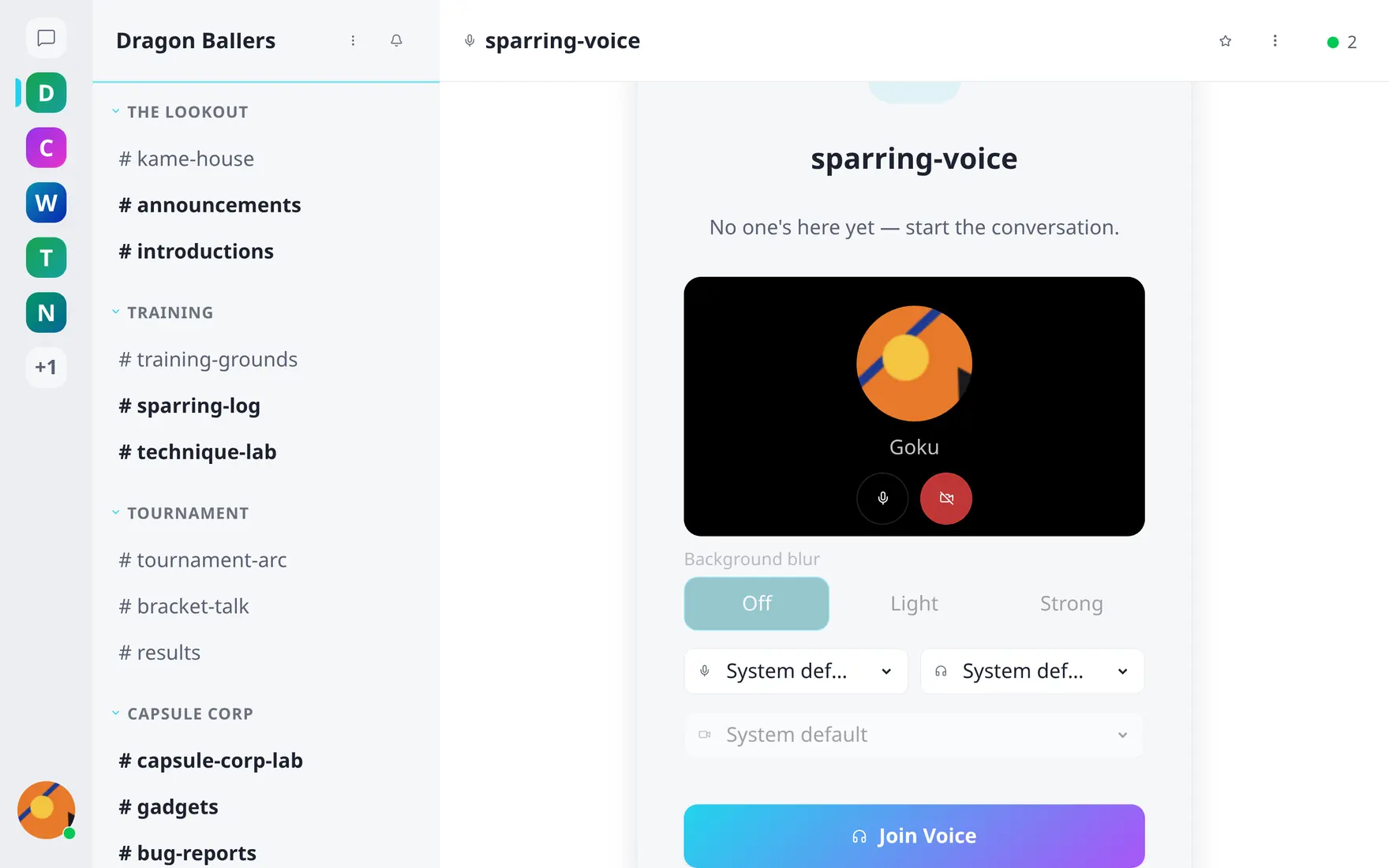
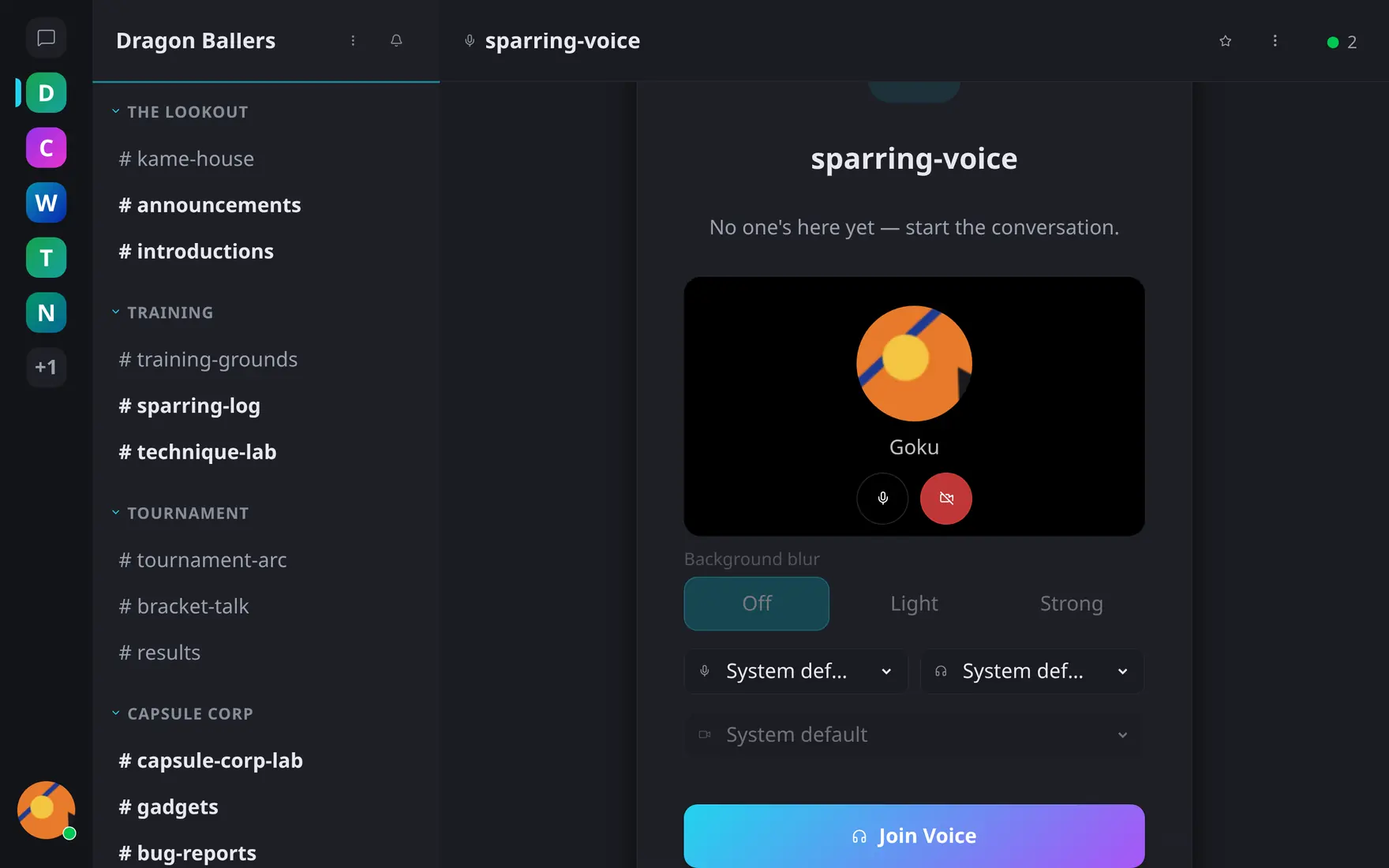
The pre-join screen: check devices, preview the camera and pick blur before joining.
Camera & screen sharing
Inside a call: camera on/off (with optional background blur, preview available in Preferences → Voice & Video → Video) and screen sharing. Tiles lay out automatically; a speaking participant is highlighted.
When voice is off
A server can run text-only (VOICE_ENABLED=false) —
voice channels and all related UI simply don’t appear.